You can connect an Arduino to a computer using a USB cable and use a Python program to receive information from the board. This communication allows you to monitor sensors, record measurements, and create applications that interact with the physical world.
In this tutorial, we’ll start with a simple experiment: a switch connected to an Arduino Uno and a Python program that shows whether it is on or off.
The Arduino detects the switch’s position and sends a message through serial communication. Python receives this message and displays the result in the computer’s terminal.
What You Need
To carry out this experiment, you’ll need:
- Arduino Uno;
- USB cable that supports data transfer;
- Two-terminal switch and connecting wires;
- Arduino IDE;
- Python installed on your computer;
- Python library
pyserial.
If you don’t have a switch, you can perform the test using a wire: connecting and disconnecting the wire between pin 2 and GND simulates the two states.
How Communication Works
The USB cable allows the computer to communicate with the Arduino through a serial port. In Windows, this port is assigned a name such as COM3, COM5, or COM6.
The Arduino sends the text messages LIGADA and DESLIGADA. The Python program waits for these messages and displays each state it receives.
In this experiment, we use a speed of 9600 baud, configured on both the Arduino and Python. Both sides must use the same speed for communication to work correctly.
Connecting the Switch to the Arduino
The connection is simple:
- One terminal of the switch connects to digital pin 2.
- The other terminal connects to GND.
The code configures pin 2 as INPUT_PULLUP. This activates the Arduino’s internal pull-up resistor, eliminating the need for an external resistor in this setup.
With this configuration, when the switch is open, the pin reads HIGH. When the switch closes the connection to GND, the pin reads LOW.
In our program, we interpret these states as follows:
| Switch Condition | Pin Reading | Message Sent |
|---|---|---|
| Open contact | HIGH | DESLIGADA |
| Closed contact | LOW | LIGADA |
Uploading and Testing the Arduino Code
In the Arduino IDE, select Arduino Uno under Tools → Board and choose the corresponding port under Tools → Port.
Upload the code provided in this article to the board.
The program sends the initial switch state and then sends a new message only when it detects a change. This prevents the terminal from continuously repeating the same text.
const int pinoChave = 2;
int estadoAnterior = -1;
void setup() {
pinMode(pinoChave, INPUT_PULLUP);
Serial.begin(9600);
}
void loop() {
int estado = digitalRead(pinoChave);
// Envia o estado inicial e depois apenas quando mudar.
if (estado != estadoAnterior) {
if (estado == LOW) {
Serial.println(“LIGADA”);
} else {
Serial.println(“DESLIGADA”);
}
estadoAnterior = estado;
}
delay(50);
}
Before moving on to Python, open the Arduino IDE’s Serial Monitor and select 9600 baud. When you turn the switch on and off, the messages LIGADA and DESLIGADA should appear.
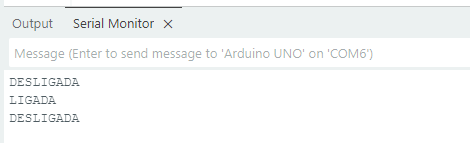
This test confirms that the connection and Arduino code are working.
Preparing Python
With Python installed, open the Windows Command Prompt and check the installation using the command py --version.
Then, install the serial communication library using py -m pip install pyserial.

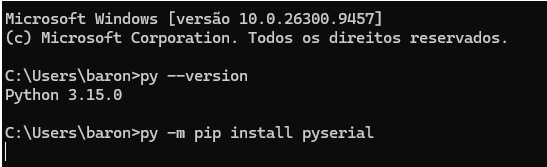
The pyserial library allows the program to open the Arduino’s serial port and read the data sent over USB.
Creating the Program on Your Computer
Save the Python code provided in this article in a file named chave.py.
If you’re using Notepad, select All Files in the file type field when saving. This prevents the file from being named chave.py.txt.
In the code, set the serial port to the same one shown in the Arduino IDE. In this test, we used COM6, but it may be different on your computer.
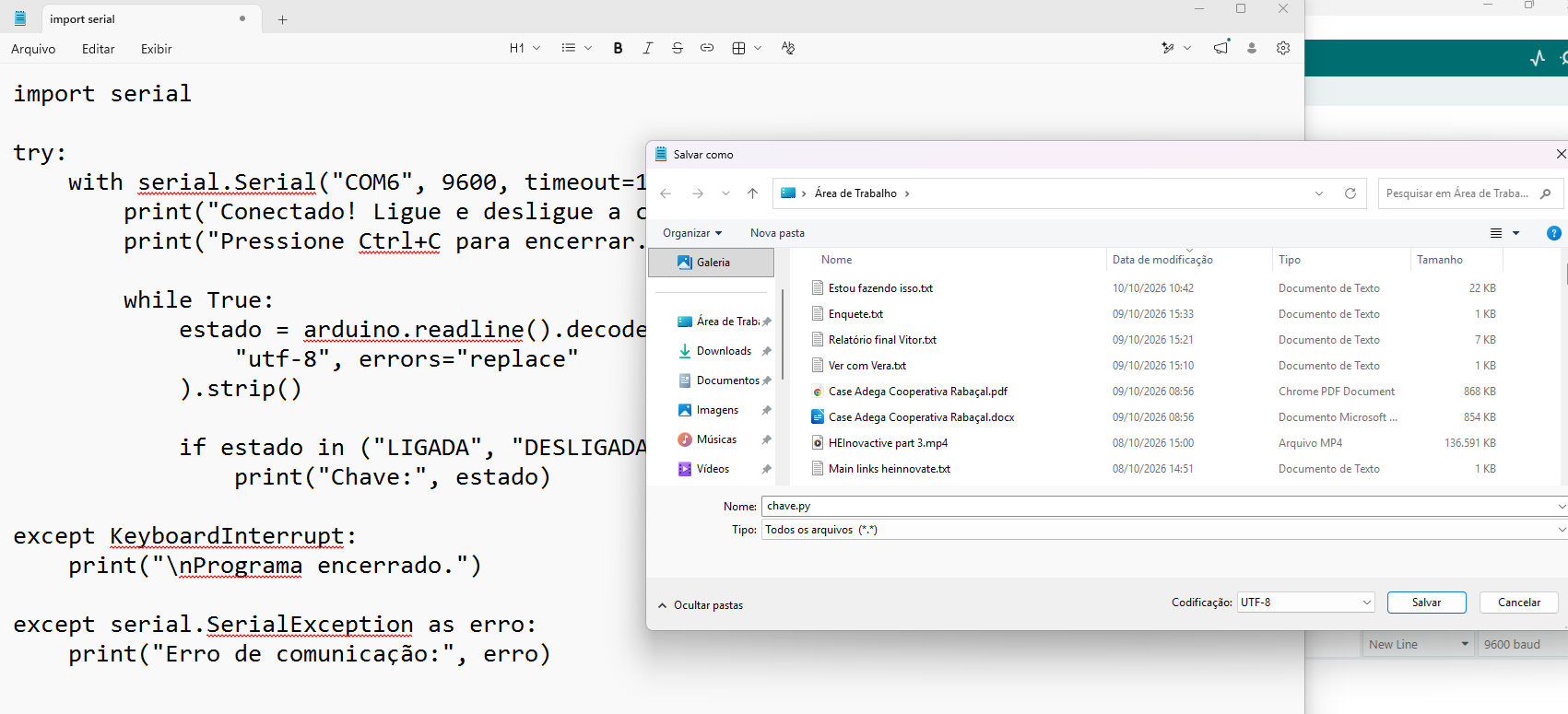
The program reads one line at a time, converts the received data into text, and checks whether the message matches LIGADA or DESLIGADA.
Running the Experiment
Keep the Arduino connected via USB and close the Arduino IDE’s Serial Monitor to free up the port for Python.
Open the folder where you saved chave.py. In the File Explorer address bar, type cmd and press Enter.
In the window that opens, run py chave.py.
Now, change the switch’s position. The terminal will display Switch: LIGADA or Switch: DESLIGADA, depending on the state received.
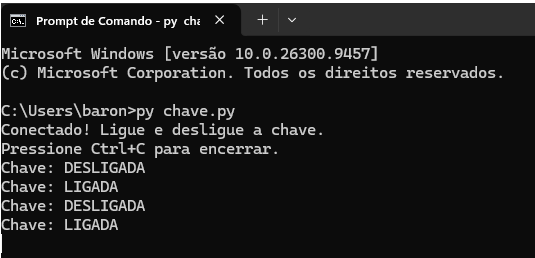
To stop the program, press Ctrl+C.
If It Doesn’t Work
If your computer doesn’t recognize the Arduino, try another USB cable and a different USB port on your computer. A lit power LED confirms that the board is receiving power, but it doesn’t guarantee that the cable supports data transfer.
If Python displays an error when opening the port, check the COM port number and make sure the Serial Monitor or another program isn’t using that connection.
If the messages don’t appear correctly, confirm that both Arduino and Python are configured for 9600 baud.
What Can We Do Next?
This experiment demonstrates the basics of integrating Arduino with a computer application. We can replace the switch with temperature, light, or distance sensors and use Python to display graphs, save measurements, or generate alerts.
We can also create an interface with a green indicator when the switch is on and a red indicator when it is off.
Communication can work in both directions: in addition to receiving information, Python can send commands to the Arduino to control LEDs, buzzers, and other components.